Vim Magic I
There’s so many cool things you can do with vim. Like, so many cool things. When listening to the Changelog episode on vim a couple of months ago I learned about the possibility to run command-line mode commands on your text selection. The basic idea is this:
Consider the following block of text in a vim editor:
The quick
brown
fox jumped
over
the lazy
dog
with the cursor at the first character on the first line do the following:
- Press
Vto go into Visual Line mode - Press
Gto select the entire text block - Press
:!to go into command-line mode and prepare for entering a unix command. The visual selection you have from the previous steps can now be considered input to whatever unix-command you type next. - As an example, type
sortand press enter (<C-R>). The sort command will take your text selection as input and overwrite the selection with the command output. I.e. your file should now read:
The quick
brown
dog
fox jumped
over
the lazy
The lines have been sorted! Pretty cool huh? I thought so at least. Until today. Today I marvel.
Next level input output piping
I’m putting together some music for a conference coming up in a few months and realized that I want the contents of a Spotify songlist to work with in a text file. Spotify has a pretty cool feature: If you select all songs in a songlist and press <C-c> or Ctrl/ + C, i.e. copy the selected content, you get all song URLs in your clipboard. Convenient! Except I want all song titles. Hmm…
Enter curl (can’t believe that thing has a .se-URL! But hey, if the author is Swedish why not go all in?). Of course the title’s somewhere in the URL! And it turns out there’s a really convenient tool for parsing html on the command line! pup! At the time of writing over 6.7k stars on GitHub. Never heard of it until today! Super easy to use. So what now? Well, now the cool part begins. Using the spotify copy feature, curl and pup I can actually get whatever metadata from the song I want. For example try running
curl -s https://open.spotify.com/track/4cOdK2wGLETKBW3PvgPWqT | pup 'meta[property=og:title] attr{content}'
And prepare to be amazed.
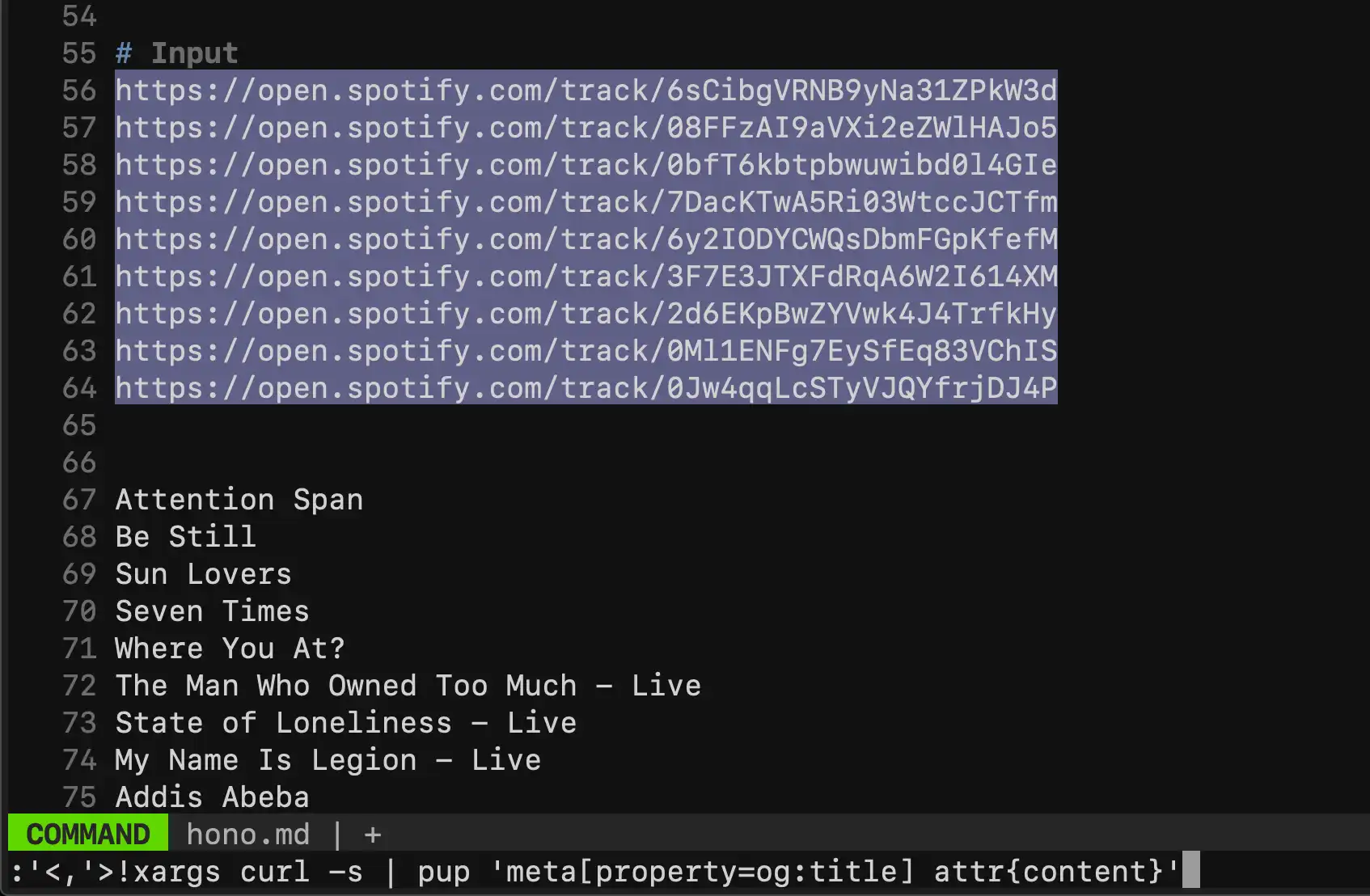
Combining this with vim’s visual select powers we can do the following:
- Get a spotify songlist you like
- Select all songs, and hit
<C-c> - Paste into your textfile
- In vim, visually select all lines
- Type
:!xargs curl -s | pup 'meta[property=og:title] attr{content}'
Voila! You have all the titles in your textfile instead of the URLs! (Admittedly the curl commands don’t seem to run in parallell so you might have to wait for a little bit, but it sure does save you a lot of typing! And I’m sure there’s a workaround for it. Why not write your own python script that does the same thing working on several lines in parallell?)
Pretty sweet eh?